Collage Maker Pro: Create Stunning Student Photo Collages in Minutes! 🎨
Transform hundreds of student photos into beautiful yearbook-style collages. Perfect for schools, academies, and educational institutions!
The Ultimate Student Photo Collage Creator
Whether you're creating yearbook pages, graduation posters, or class displays — Collage Maker Pro does it all with automatic photo sorting,beautiful layouts, and one-click enhancements!
Why Schools Love Collage Maker Pro
Auto-Sorting Magic
Just name your photos correctly (e.g., SH001_2023-24.jpg) and the app automatically groups them by school and academic year!
Smart Layout Presets
Choose from Auto, 3×3, 4×5, or 5×6 layouts. The app calculates the perfect arrangement based on your photo count!
One-Click Enhancements
Dark photo? Click Auto Enhance. Need vintage look? Apply Sepia filter. Every photo can be perfected instantly!
Reusable Templates
Save your perfect layout and reuse it next year! Same beautiful design, new student photos — done in 2 minutes.
How It Works — 5 Simple Steps
Select Photos Folder
Click 📁 Select Photos Folder and choose your student photos. The app scans and groups them automatically!
Choose Filters
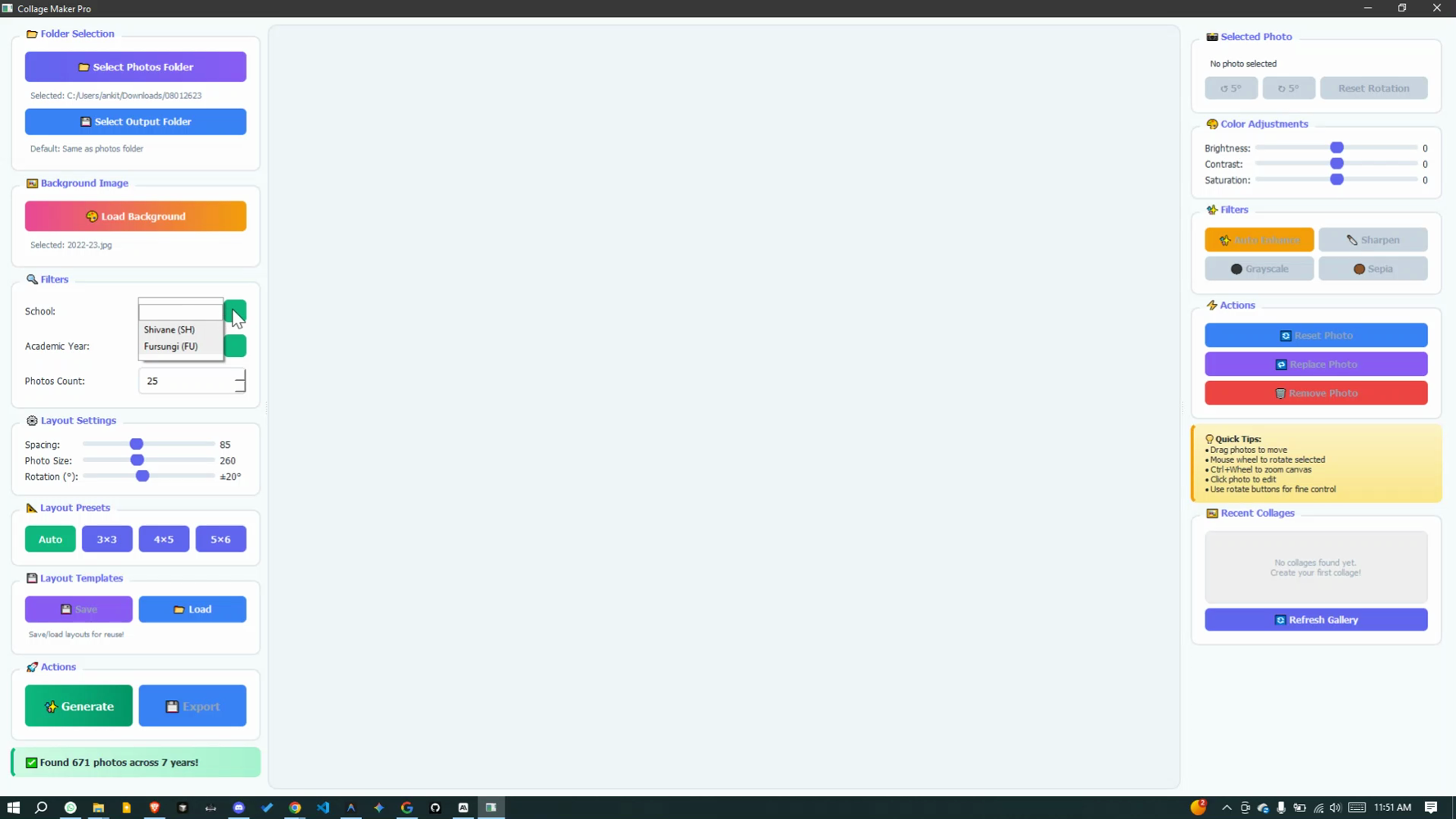
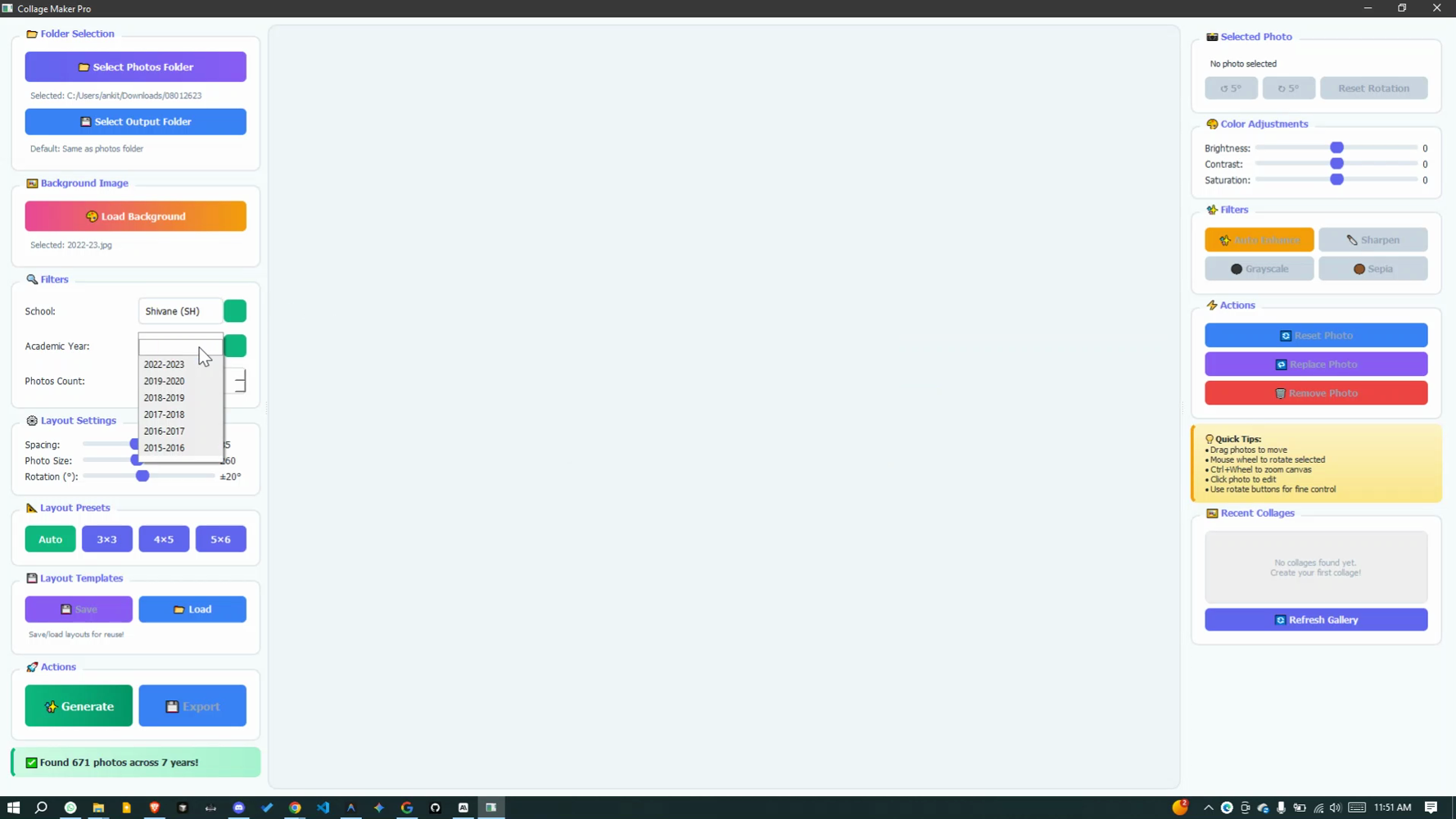
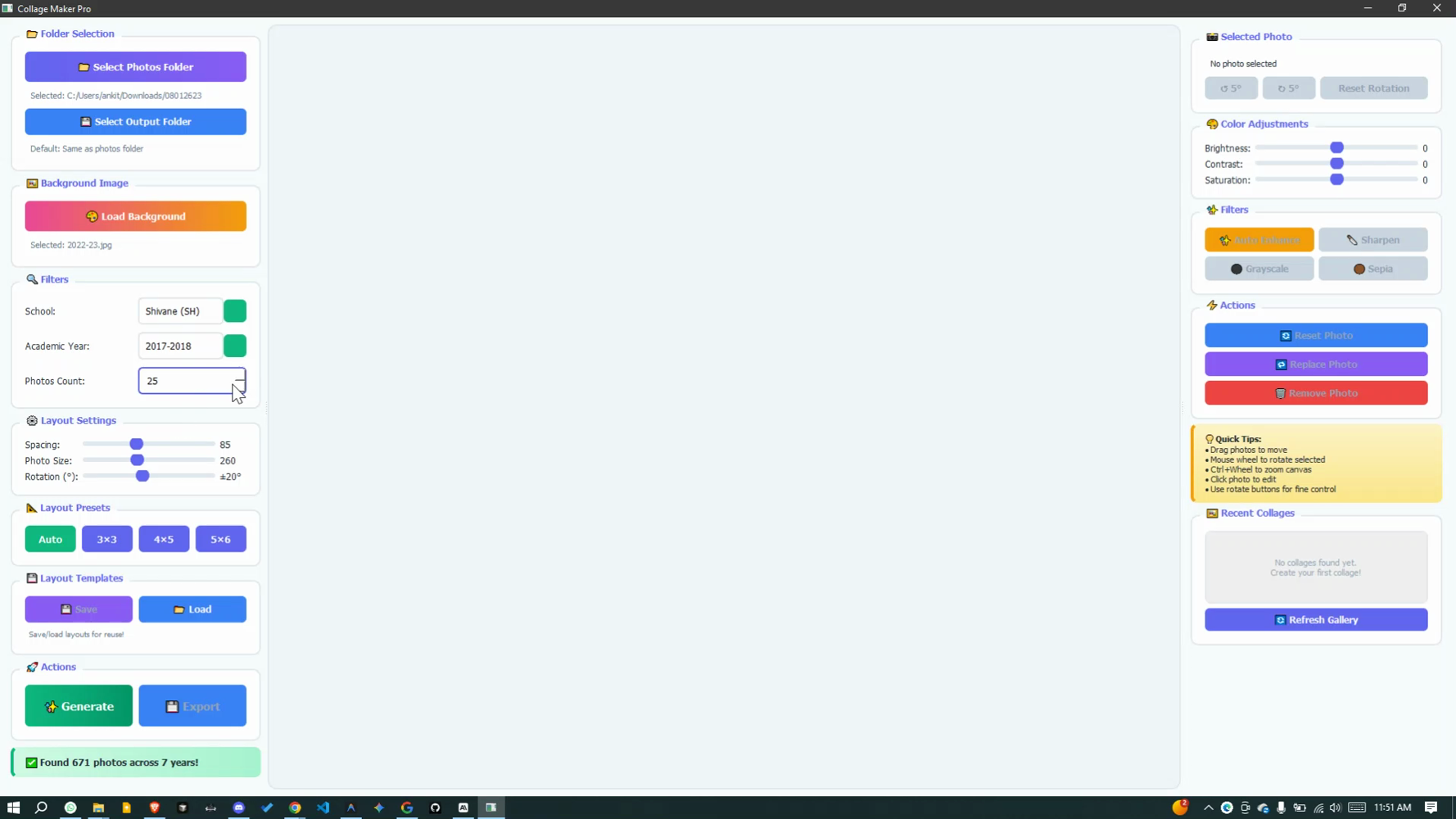
Select school (Shivane, Fursungi, Walnut Academy, etc.) and academic year. Set how many photos to include.
Customize Layout
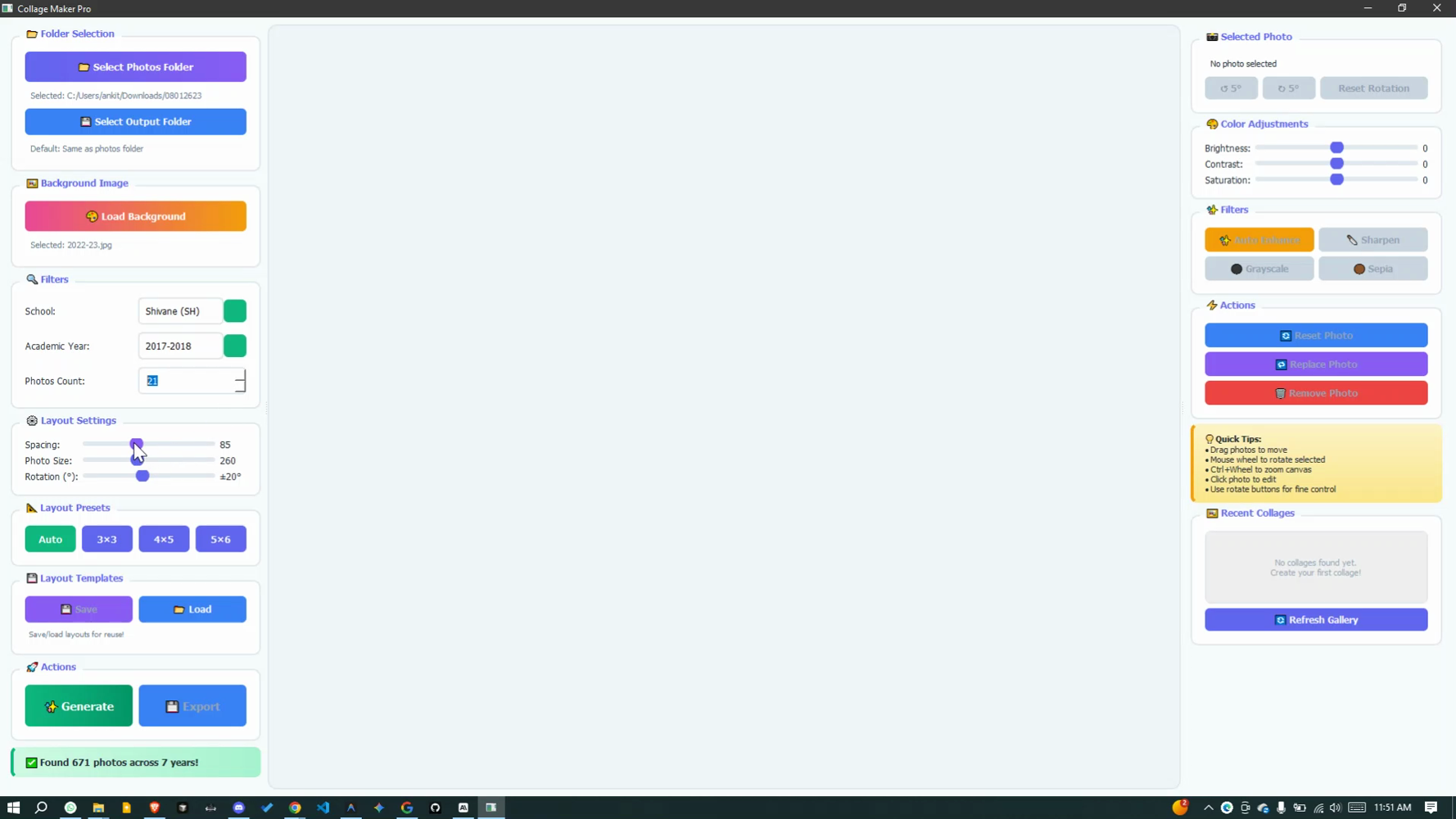
Adjust spacing (10-200), photo size (100-500), and rotation angle (0-45°). Pick a layout preset like 4×5 or 5×6.
Generate & Edit
Click ✨ Generate! Drag photos to reposition, scroll to rotate, and use filters to enhance individual photos.
Export
Save as PNG (best quality) or JPG (smaller file). Your 3000×2000 pixel masterpiece is ready!
Powerful Editing Tools
Color Adjustments
- • Brightness (-100 to +100)
- • Contrast (-100 to +100)
- • Saturation (-100 to +100)
One-Click Filters
- • ✨ Auto Enhance
- • 🔪 Sharpen
- • ⚫ Grayscale
- • 🟤 Sepia (vintage)
Photo Actions
- • 🔄 Reset Photo
- • 🔁 Replace Photo
- • 🗑️ Remove Photo
- • ↺ ↻ Rotate 5°
Real-World Use Cases
Annual Yearbook
32 students, Class 8
5×6 layout, Spacing: 85, Size: 260
Graduation Poster
50 graduates, large format
Auto layout, Spacing: 120, Size: 350
Multi-Year Display
Same class, 3 years growth
Save template, change year, export
Recommended Settings
| Purpose | Spacing | Size | Rotation | Format |
|---|---|---|---|---|
| 📖 Yearbooks | 70-90 | 240-280 | 15-25° | PNG |
| 🖼️ Posters | 100-130 | 300-400 | 25-35° | PNG |
| 💻 Digital Display | 60-80 | 220-260 | 10-20° | JPG |
| 📱 Social Media | 100 | 300 | 15° | JPG |
See It In Action
Follow along with these step-by-step screenshots from the app:
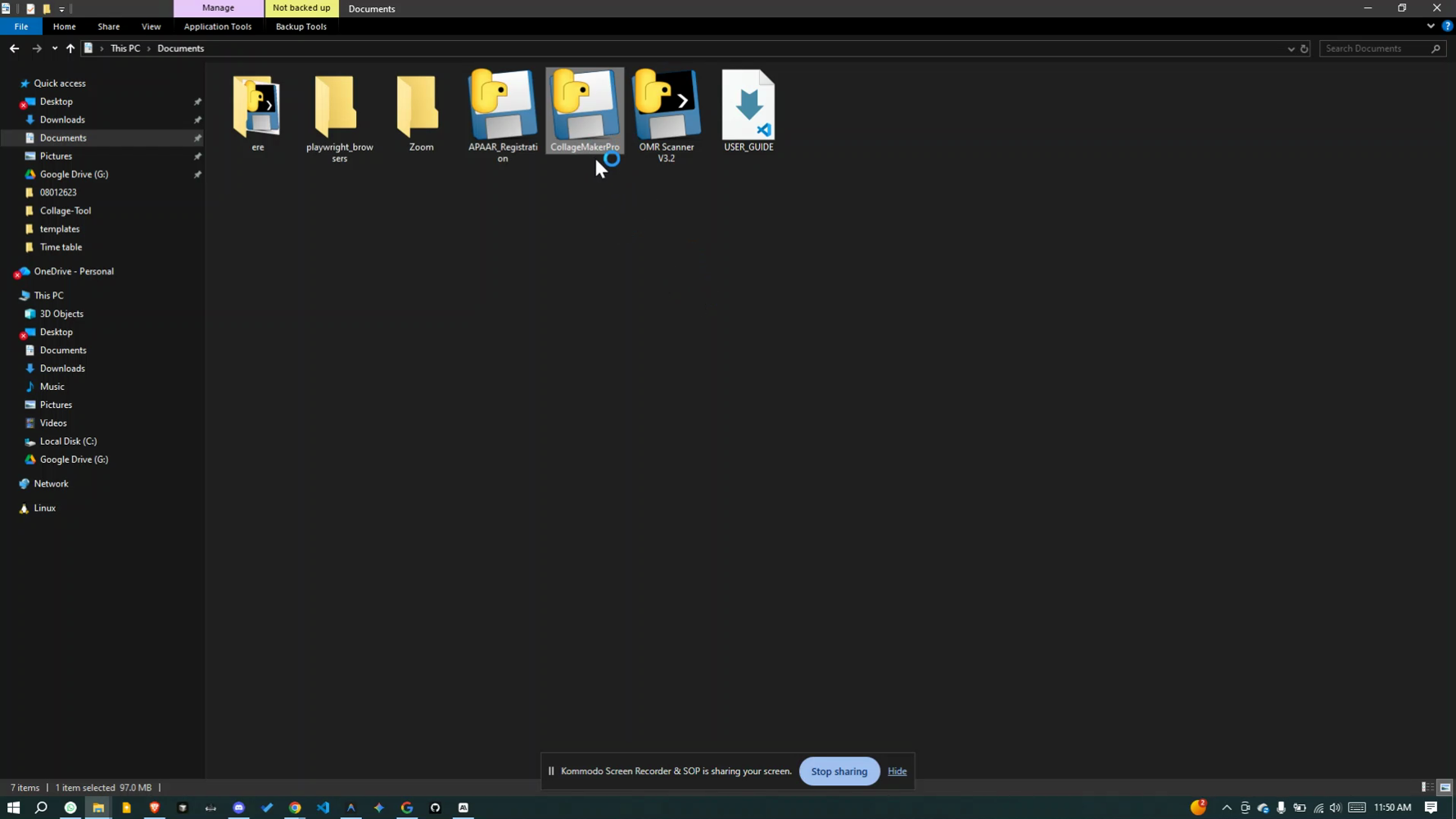
Launch App
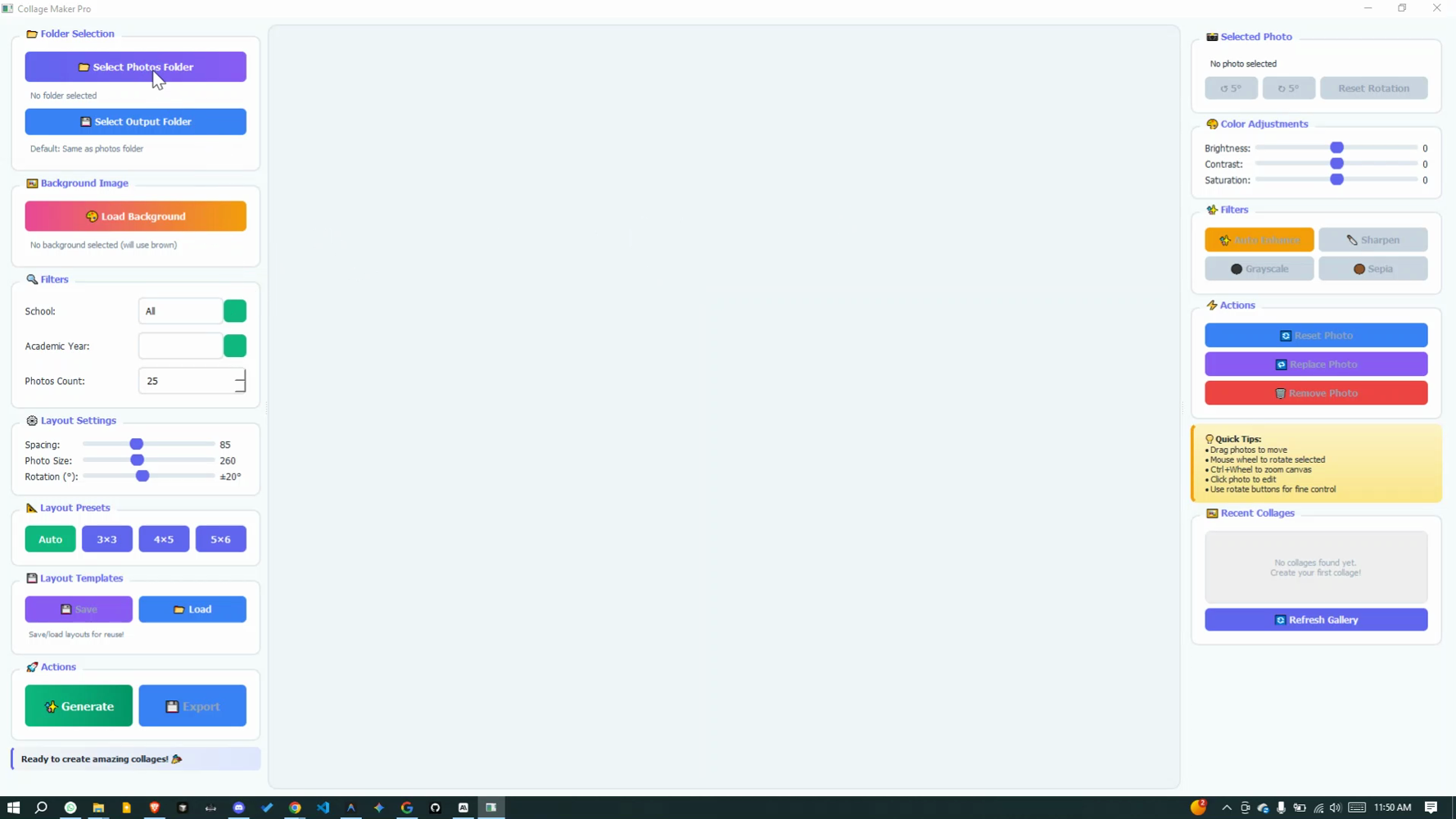
Select Folder
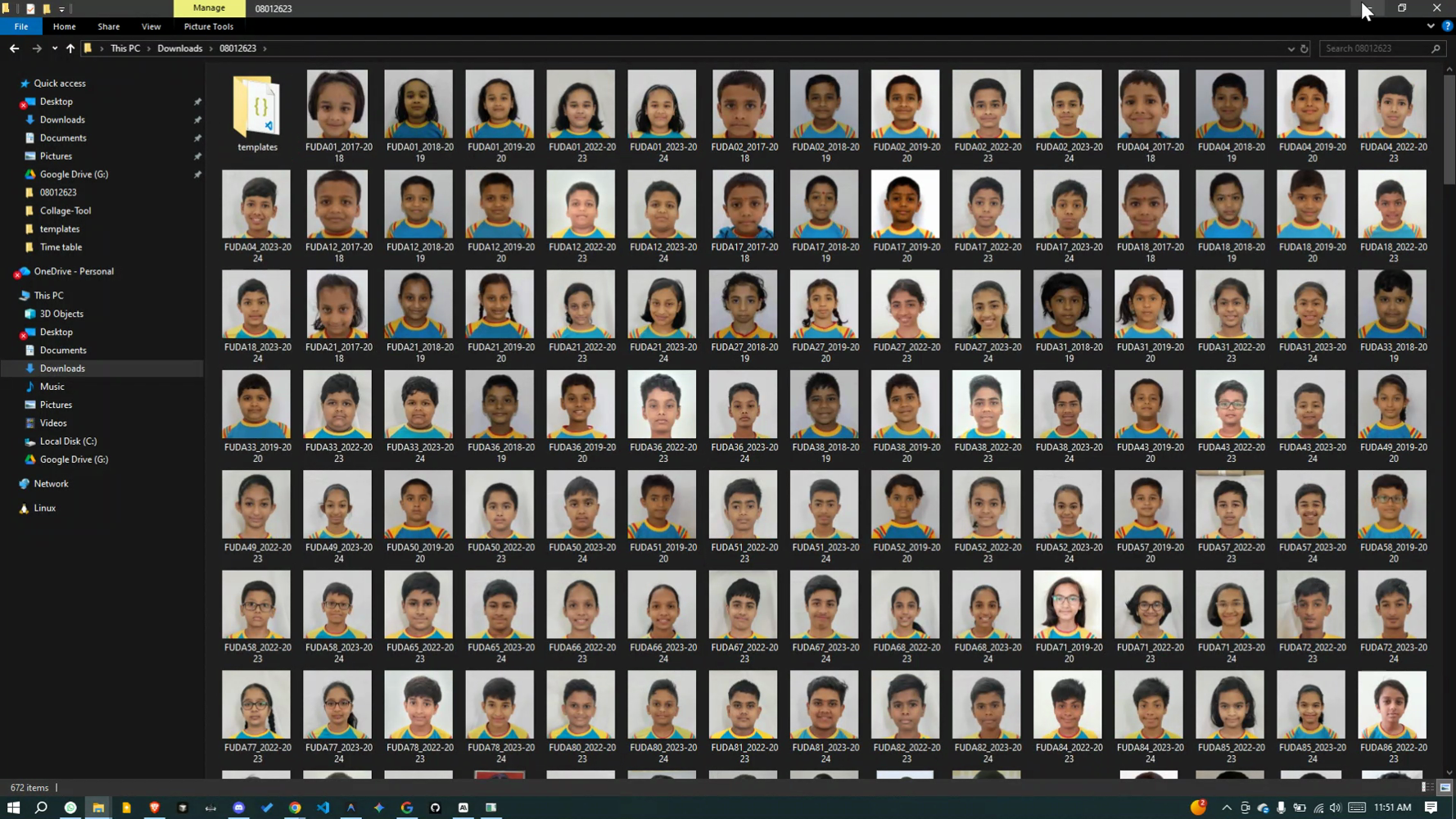
Photos Loaded
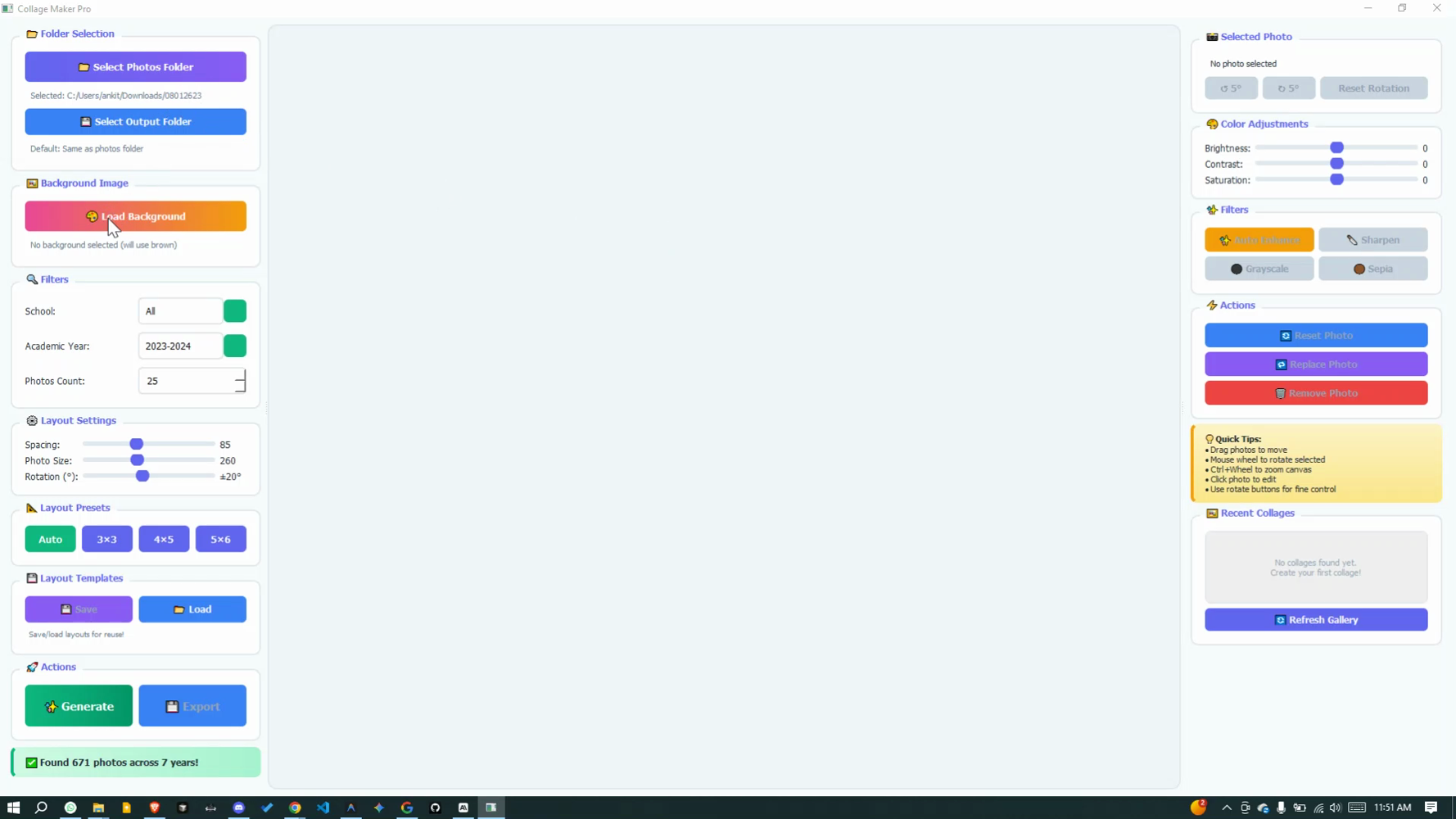
Choose School
Select Year
Set Photo Count
Adjust Spacing
Set Photo Size
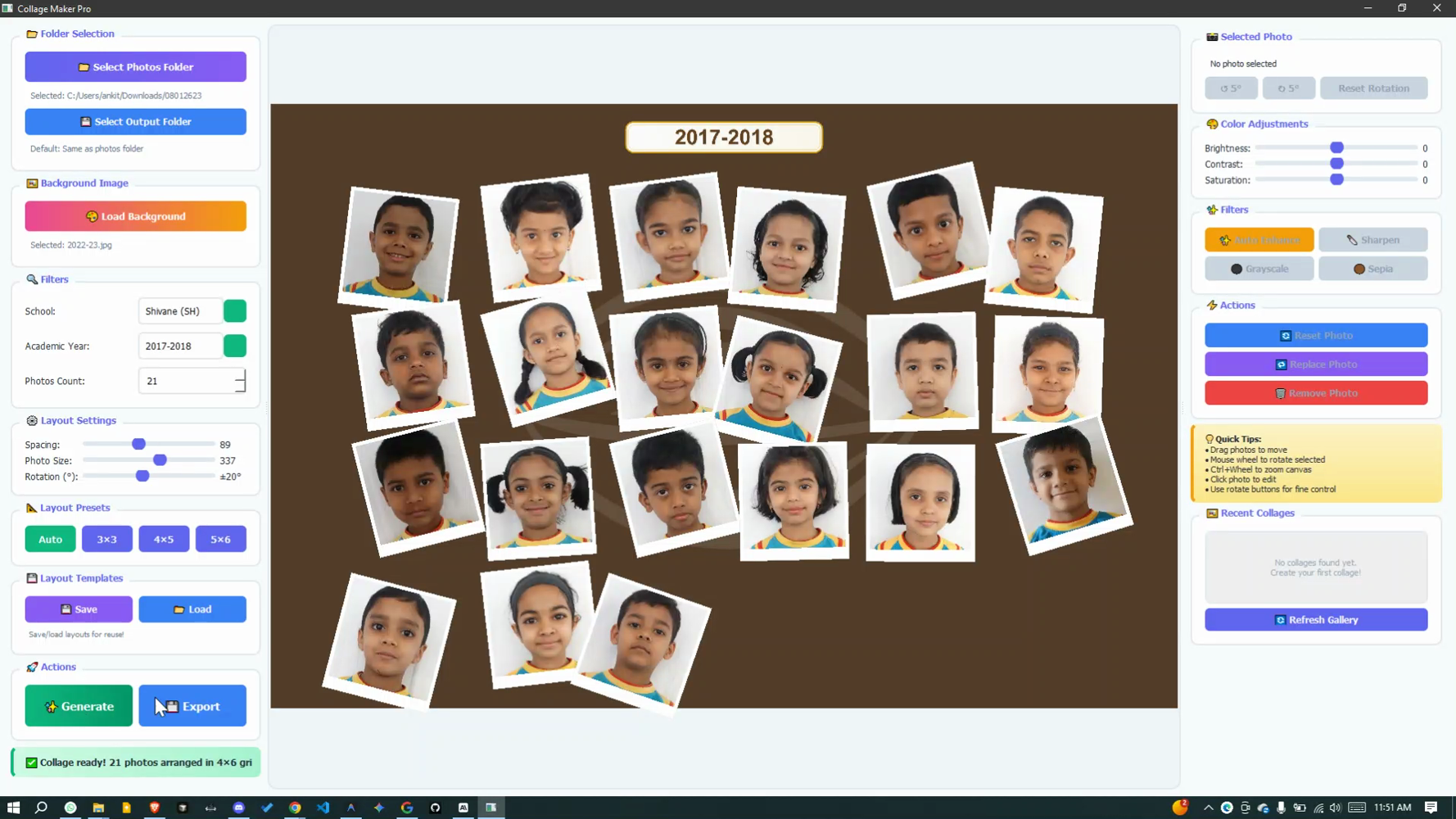
Choose Rotation
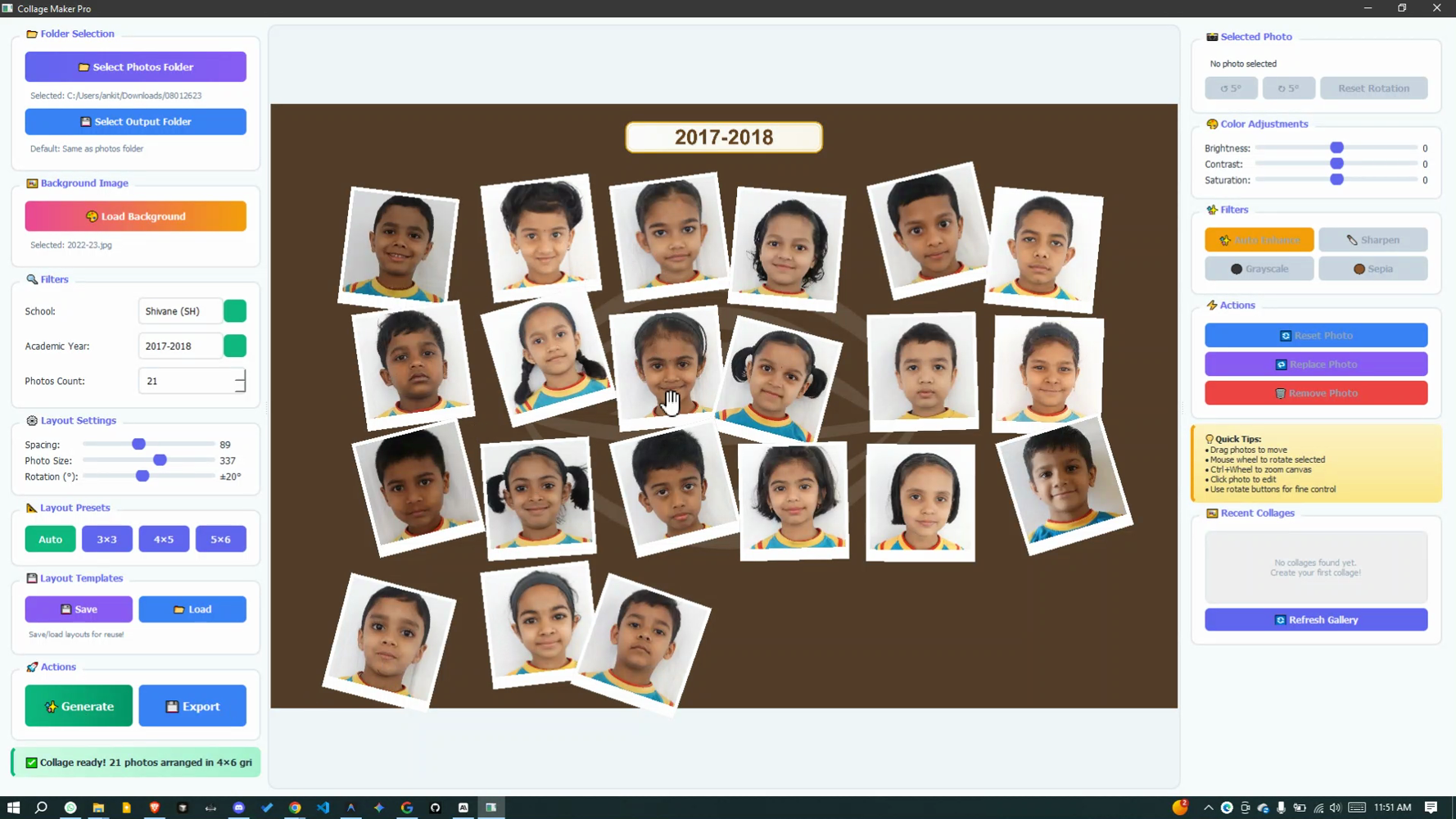
Pick Layout
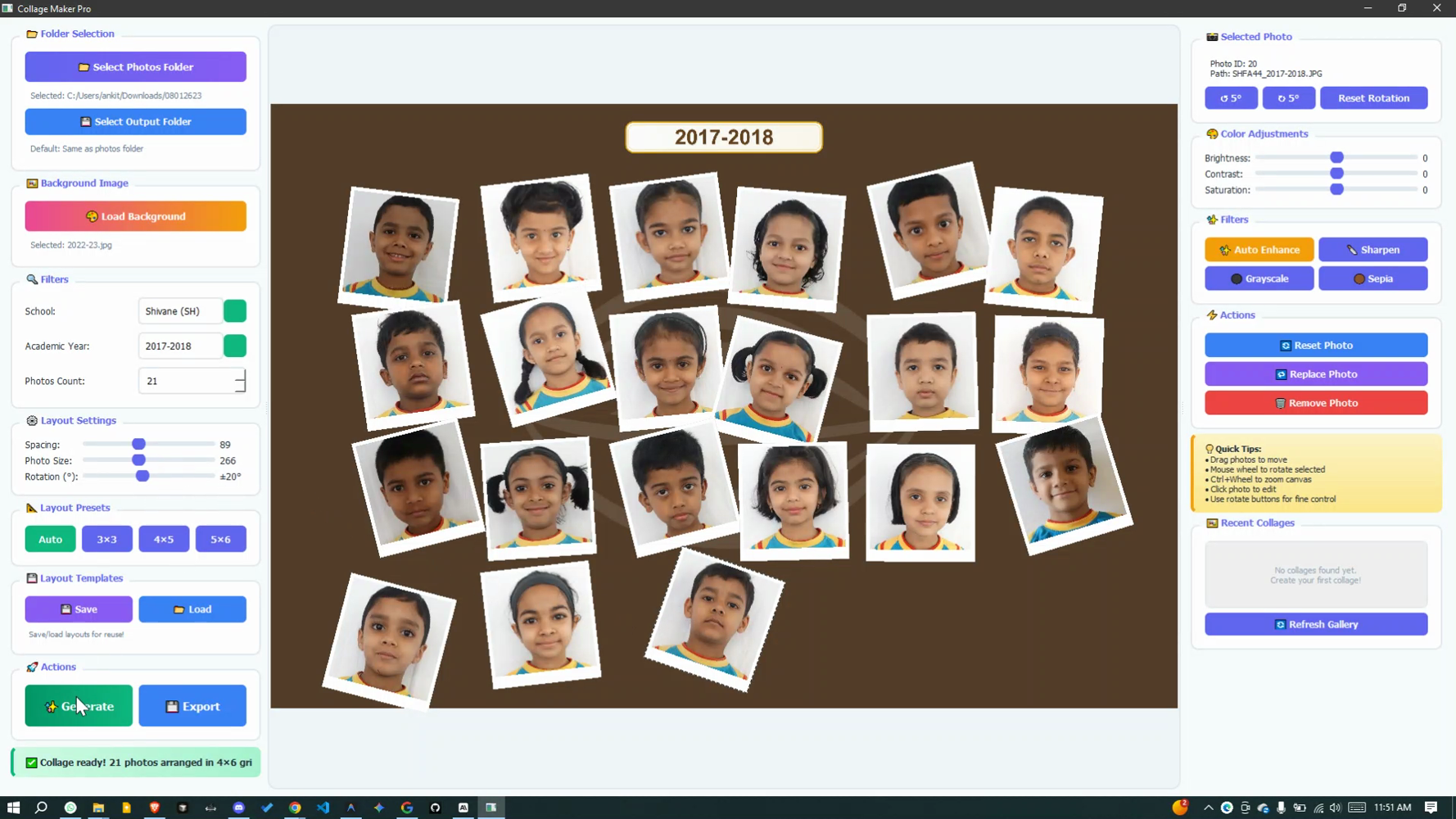
Generate Collage
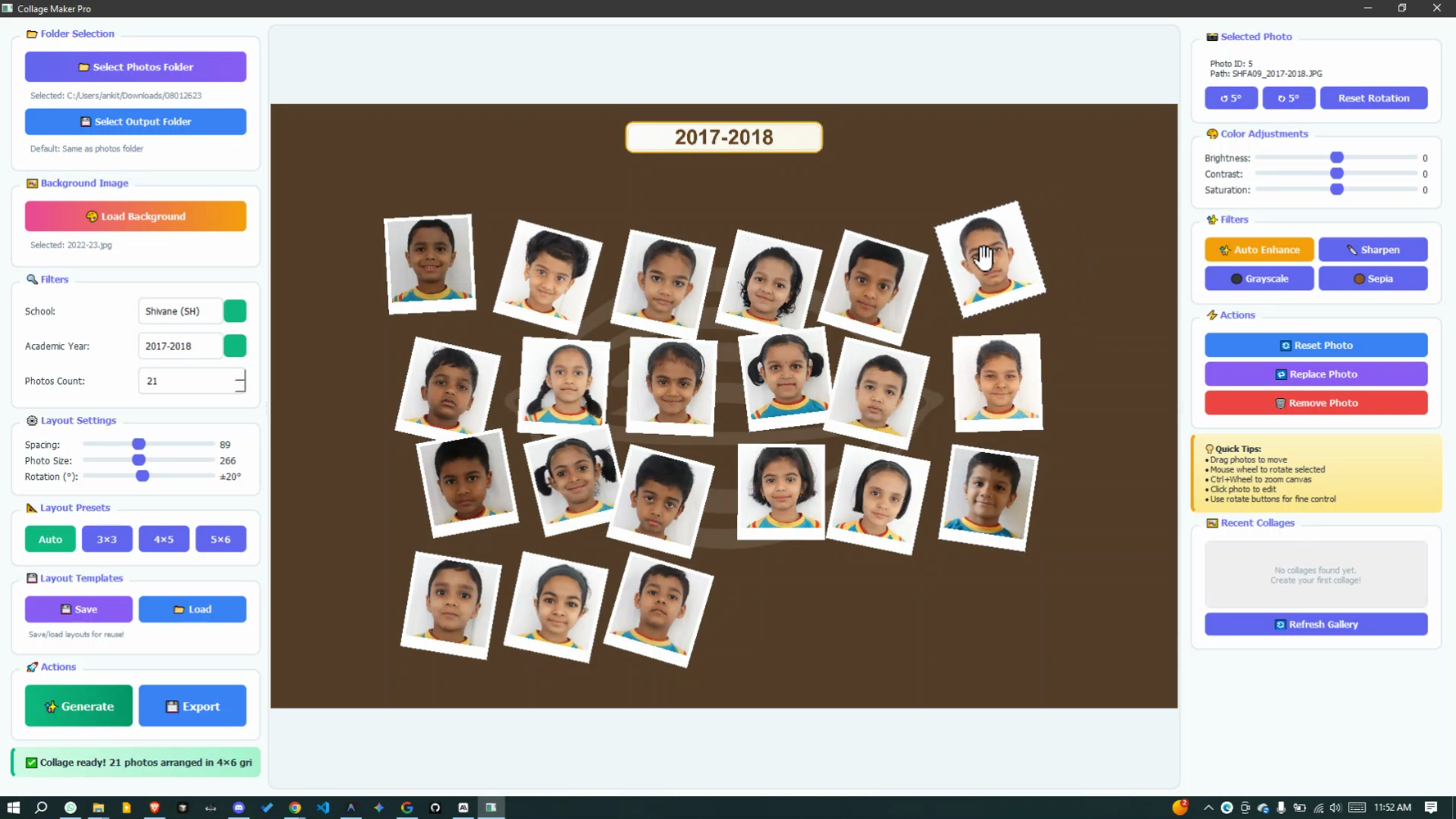
Drag to Reposition
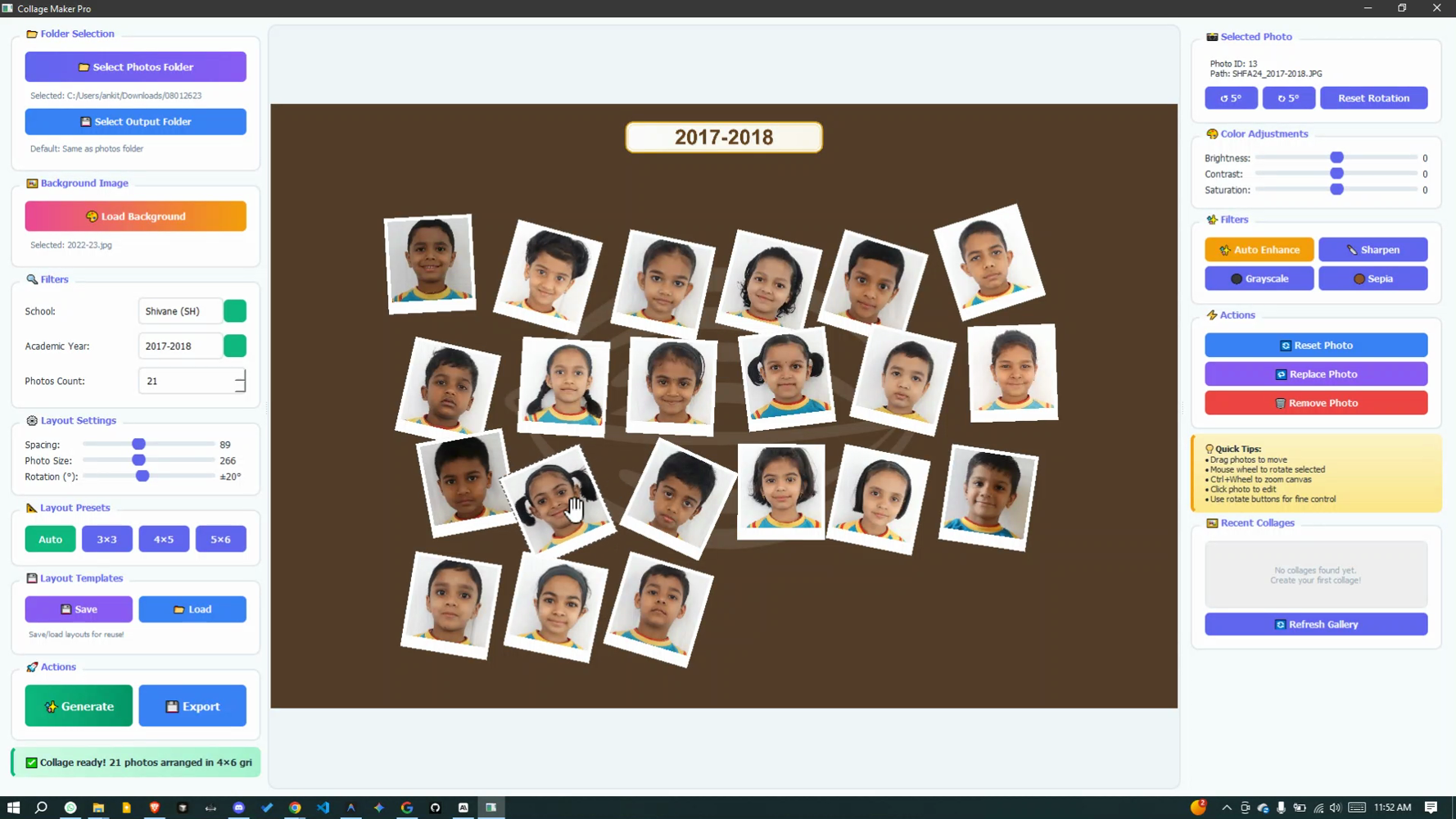
Scroll to Rotate
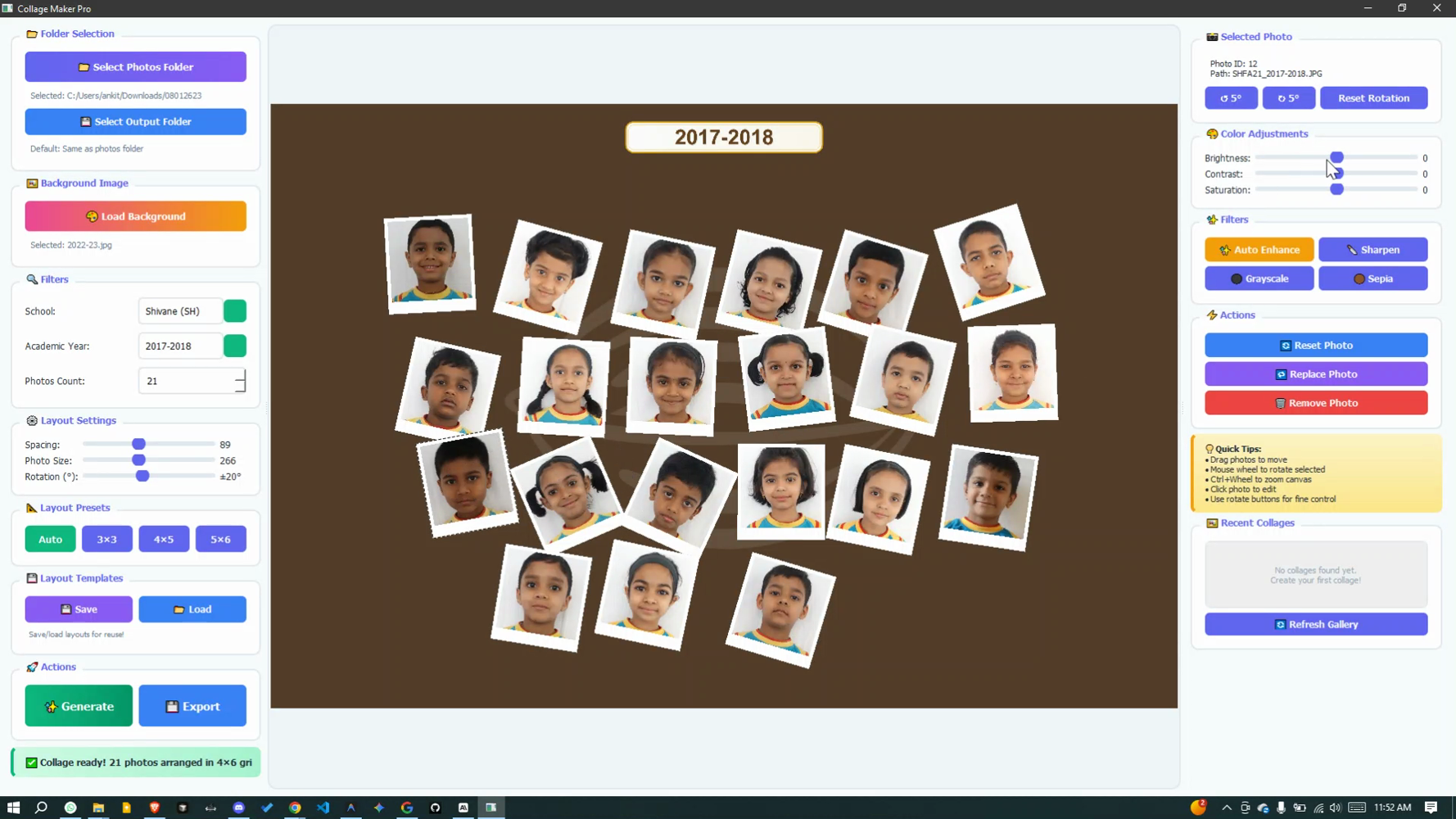
Apply Filters
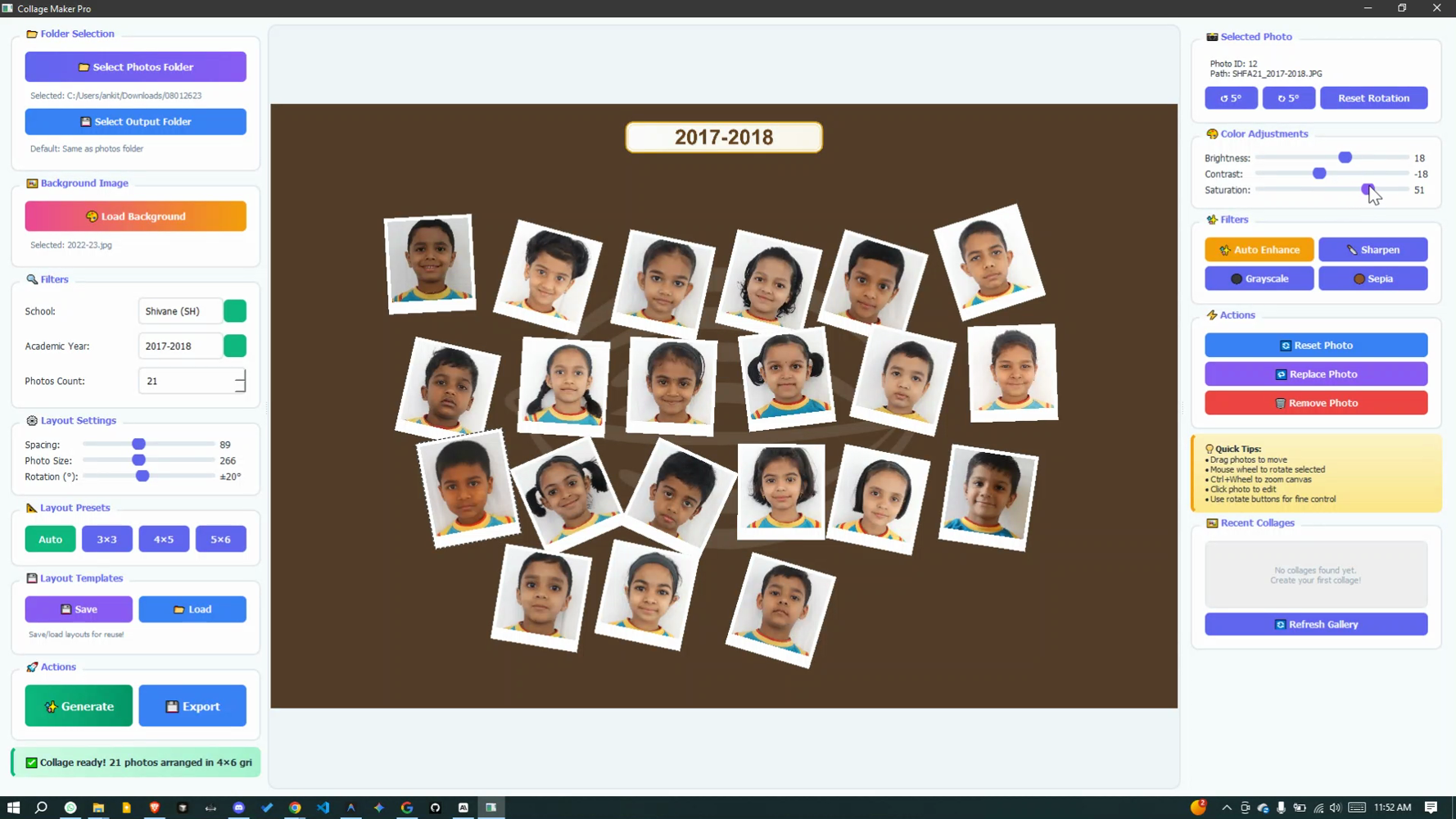
Adjust Colors
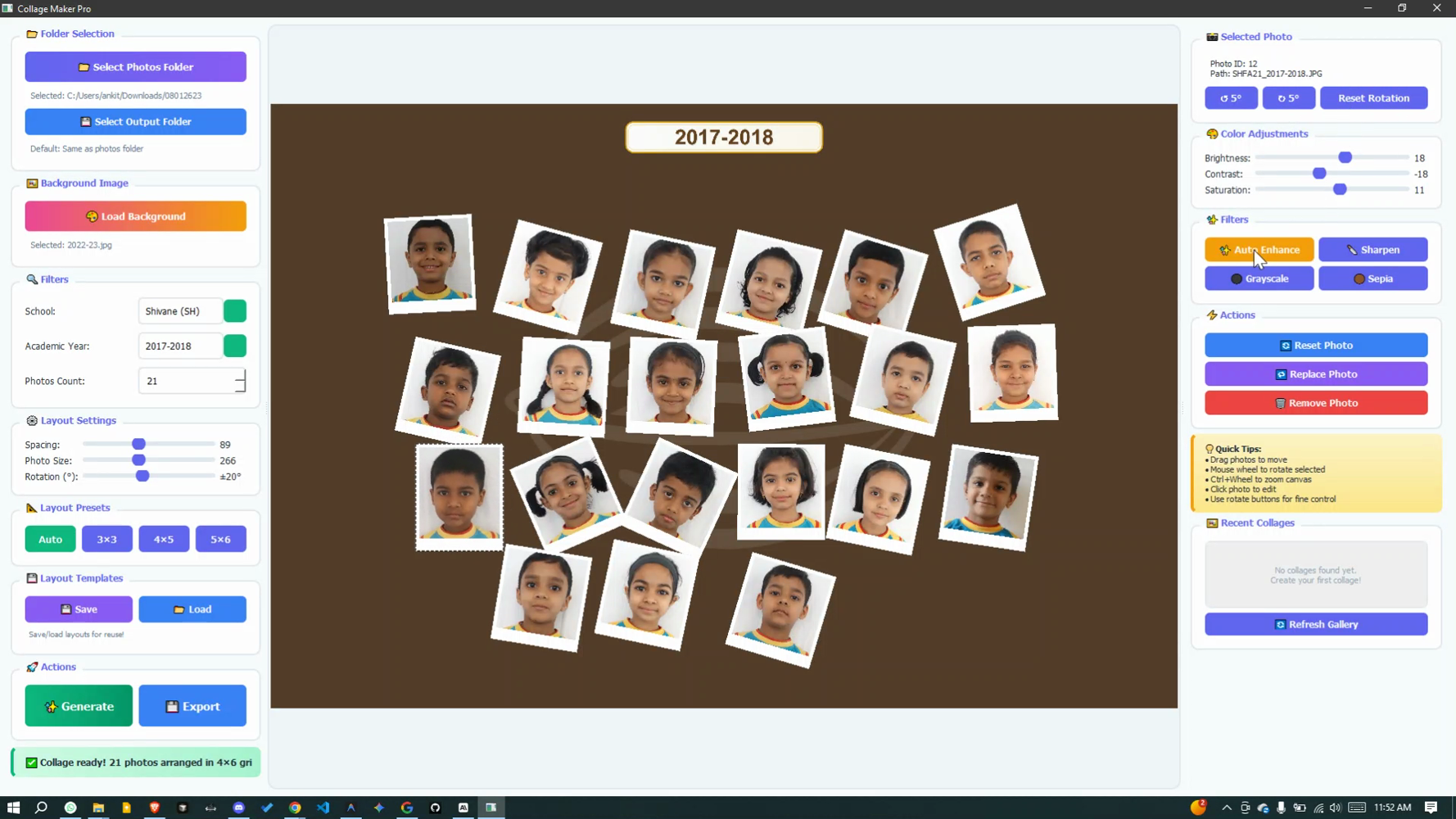
Save Template
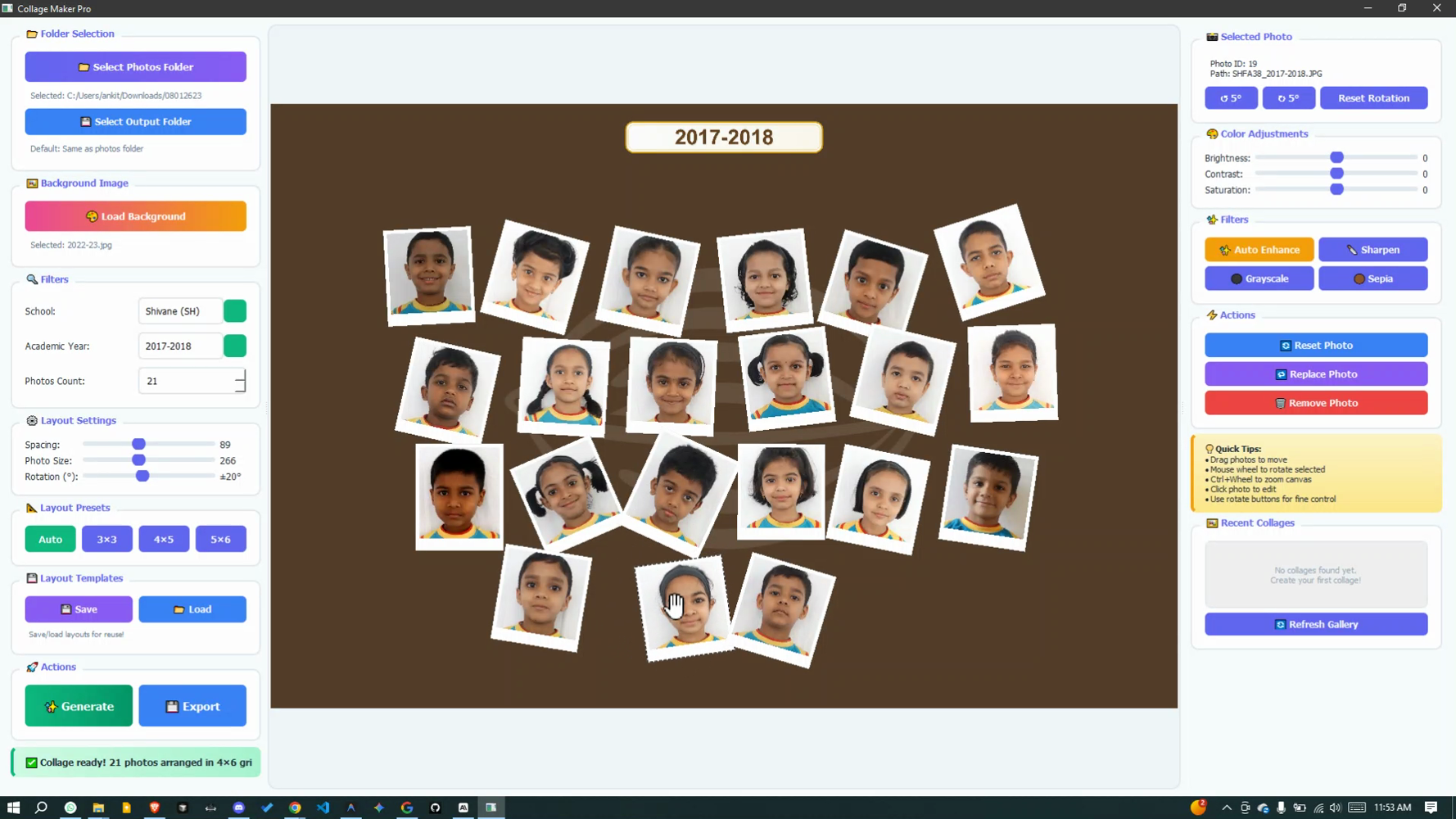
Export PNG
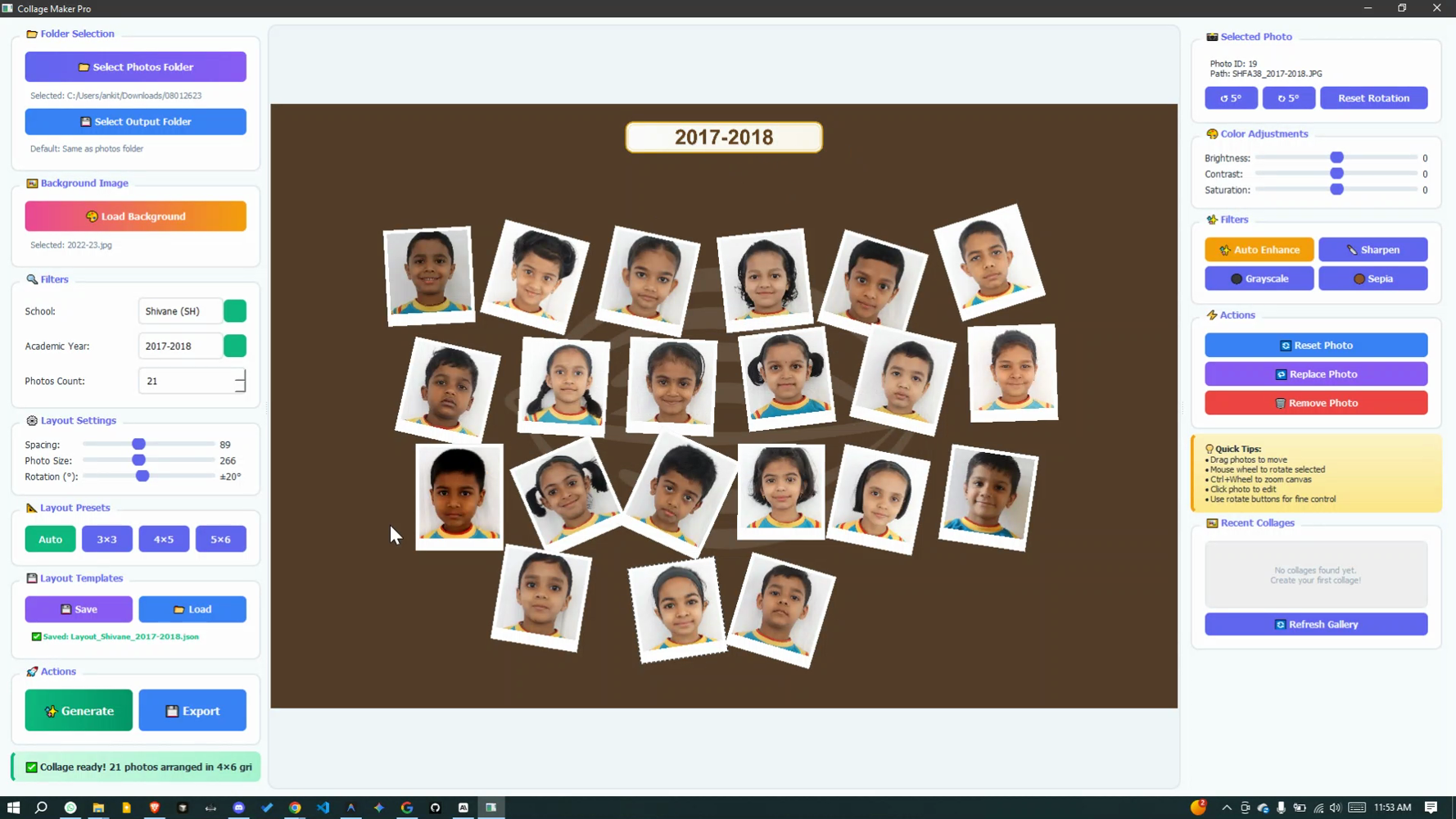
Export JPG
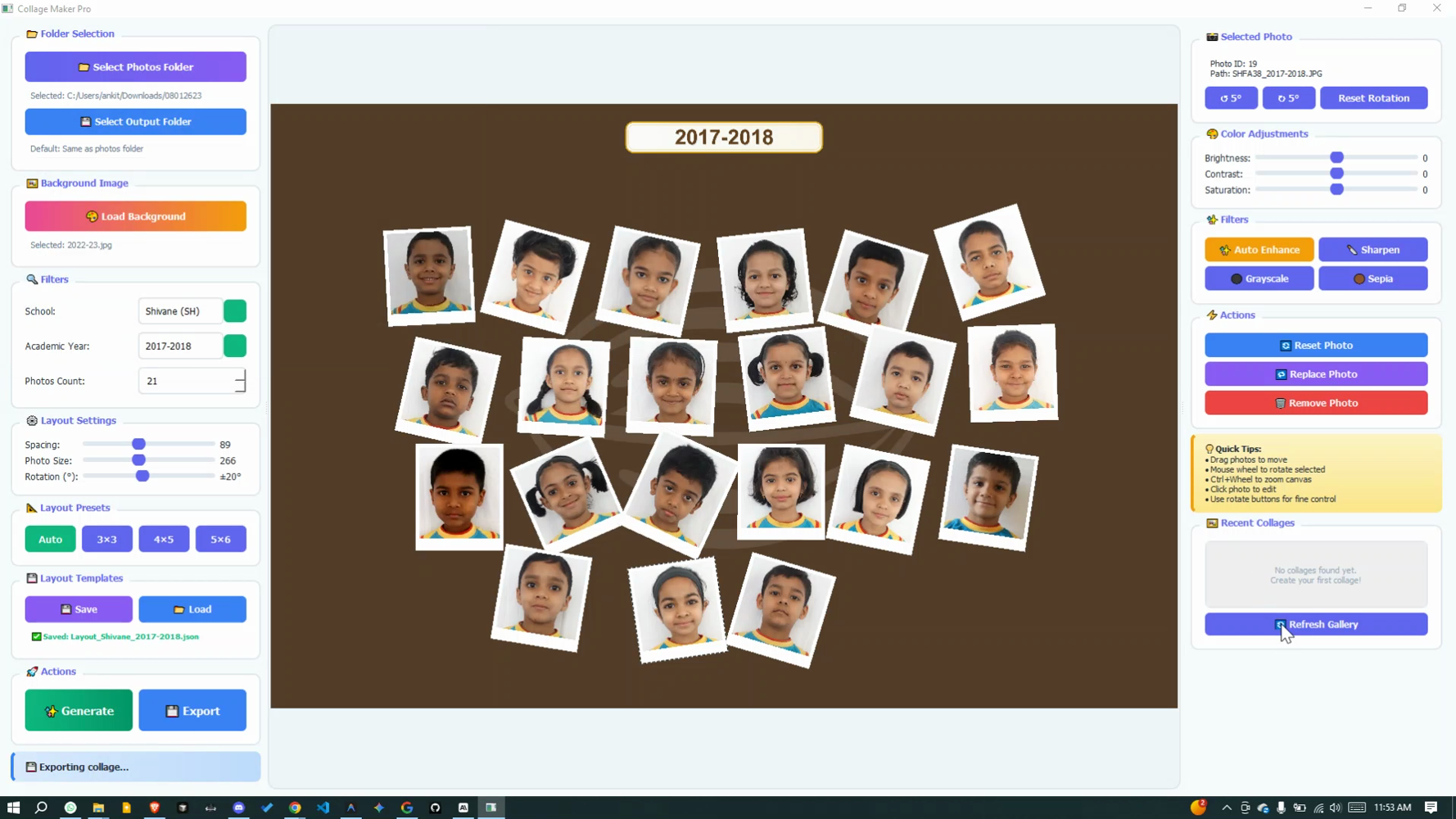
Final Result
Ready to Create Beautiful Collages?
Transform your student photos into stunning yearbook-quality collages today!